Custom AI Voice Covers: Step-by-Step Guide
This tutorial explains how to create your own AI singing voice and apply it to song covers using MusicArt.
Introduction
MusicArt lets you train a unique AI voice model from your own recordings and apply that voice to existing songs.
This workflow is designed for creators who want vocal personalization without microphones, studios, or advanced production skills.
Getting Started
Train your voice model
Open the AI Singing Voice Generator.
Enter a name for your voice model, then upload your vocal recordings to begin training.
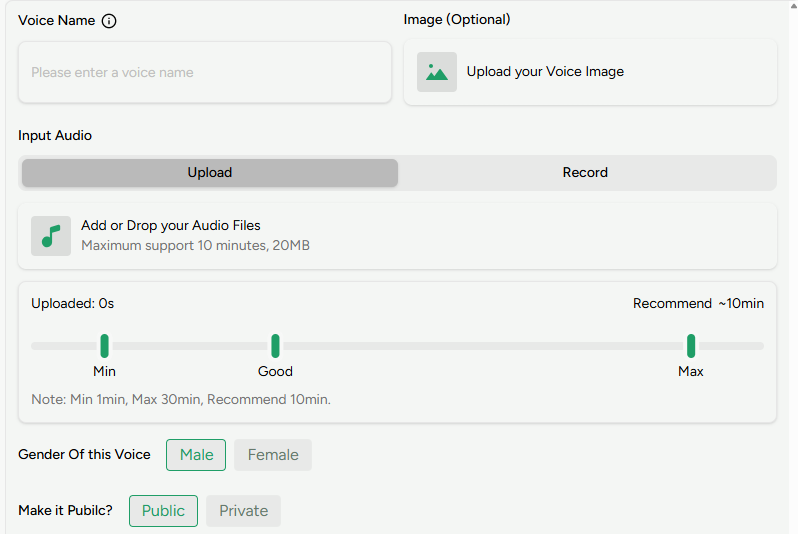
Train your voice model
You can upload audio files or record directly in your browser. Supported total length ranges from 1 to 30 minutes.
For the most accurate results, provide at least 10 minutes of clean vocal audio with no background noise, reverb, echo, or music.
After uploading, select the vocal gender and choose whether the model is public or private. Public models may appear in the shared voice library for other users to explore.
Generate your AI song cover
Open the AI Song Cover Generator. You will see two options: "My Voice Model" and "Library".
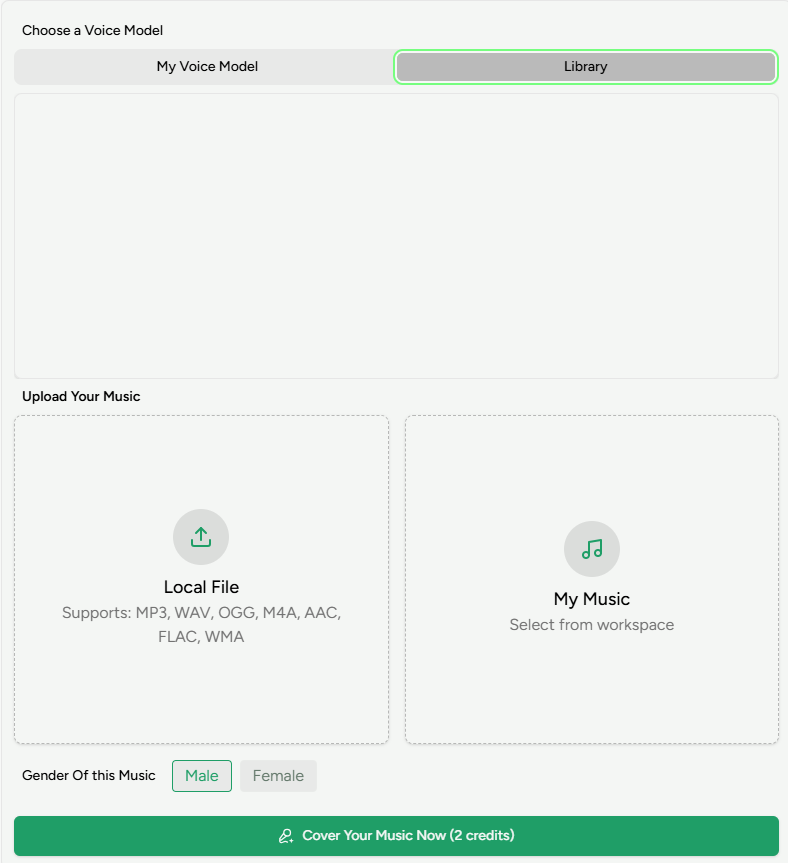
- Select one of your trained voice models under “My Voice Model”, or choose a preset voice from the Library.
- Upload the song you want to cover, or select a track from “My Music” that you previously created on MusicArt.
- Set the vocal gender for the cover, as this directly affects the generated singing.
- Click the Cover button and wait about 1–2 minutes for processing.
When the process finishes, preview the cover and download the final audio.